Look & Tone
The Look & Tone section, at the top of the Scene tab in Studio, sets what surrounds your splat and how the whole image is rendered. Changes show in the viewport straight away.
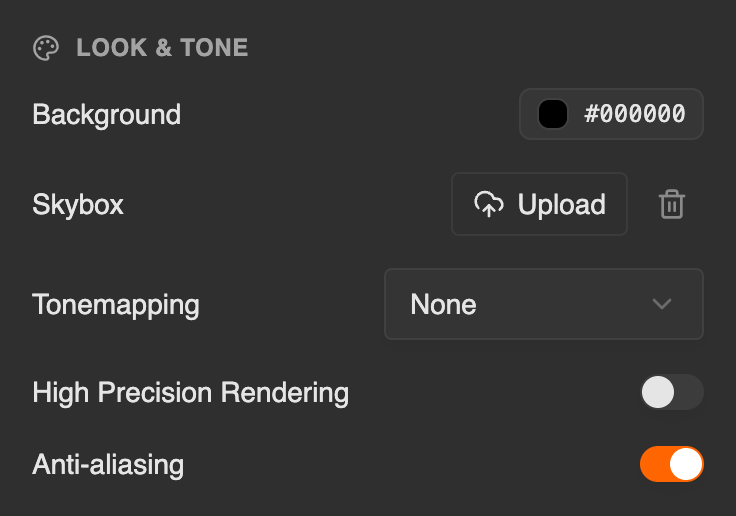
| Control | What it does |
|---|---|
| Background | The solid color behind the splat. Click the swatch to open a color picker. |
| Skybox | Upload an equirectangular image to surround the splat, or delete the current one. See Skybox. |
| Tonemapping | How the renderer maps high-dynamic-range output to the display. See Tonemapping. |
| High Precision Rendering | Renders with more precision, at the cost of more GPU work per frame. Use it when bright highlights, fine grading or post effects show banding. Bloom needs it. Off by default. |
| Anti-aliasing | Draws the splat for anti-aliased training, such as Mip-Splatting. On by default. Turn it off if small or distant Gaussians look too faint. See Anti-aliasing. |
Skybox
Click Upload next to Skybox to open the Upload Skybox dialog. It takes one .webp or .hdr file. HDR files are converted in your browser before they upload. For best results, use an equirectangular image: a 2:1 panoramic projection that maps cleanly onto the surrounding sphere.
Each scene can have one skybox, and uploading another replaces it. The upload happens immediately and doesn't need Save. The trash icon deletes the skybox.
The background color still matters with a skybox: it shows anywhere the skybox doesn't cover.
When to use one or the other
- Background color only — for studio-style presentations where you want the focus on the splat itself.
- Skybox — for scenes captured outdoors or in believable environments, where matching the surrounding lighting and horizon matters.
Tonemapping
| Option | Notes |
|---|---|
| None | Pass-through with no scaling. |
| Linear | No tonemapping curve: output is linear. |
| Filmic | Classic film-emulating curve. |
| Hejl | Hejl-Burgess-Dawson curve. |
| ACES | ACES filmic curve. |
| ACES 2 | ACES variant with rolled-off highlights. |
| Neutral | Khronos Neutral tonemap. |
Anti-aliasing
Splats trained with anti-aliasing, such as with Mip-Splatting, draw too bright without compensation. Studio's switch turns that compensation on (the default) or off for the whole scene, and saves the choice with the scene's settings. On superspl.at, scene pages and embeds follow the switch: compensation is on unless you turn it off here.
In the viewer
- AR — the skybox and background color are hidden during an AR session, so the room shows through around the splat. VR sessions keep them.
- Self-hosting — the viewer doesn't load the skybox or the anti-aliasing setting from the scene's settings. When you host the viewer yourself, pass the image with the
skyboxURL parameter or theskyboxUrloption, override High Precision Rendering withhpr, and set anti-aliasing withaa. Withoutaa, each splat file's own anti-aliasing tag decides.
See also
- Post Effects — sharpness, bloom, color grading, vignette and chromatic fringing
- Experience Settings — the JSON contract that stores these settings