SuperSplat Studio
SuperSplat Studio is where you curate the viewing experience of a splat you've already published or directly uploaded. It opens on top of the published scene and shapes what a visitor sees on its scene page: the background or skybox, tonemapping, the starting camera, a camera animation, collision geometry for walkable scenes, post effects, and on-scene annotations.
Studio writes its output as a single JSON document, the Experience Settings, which the open-source SuperSplat Viewer reads at runtime.
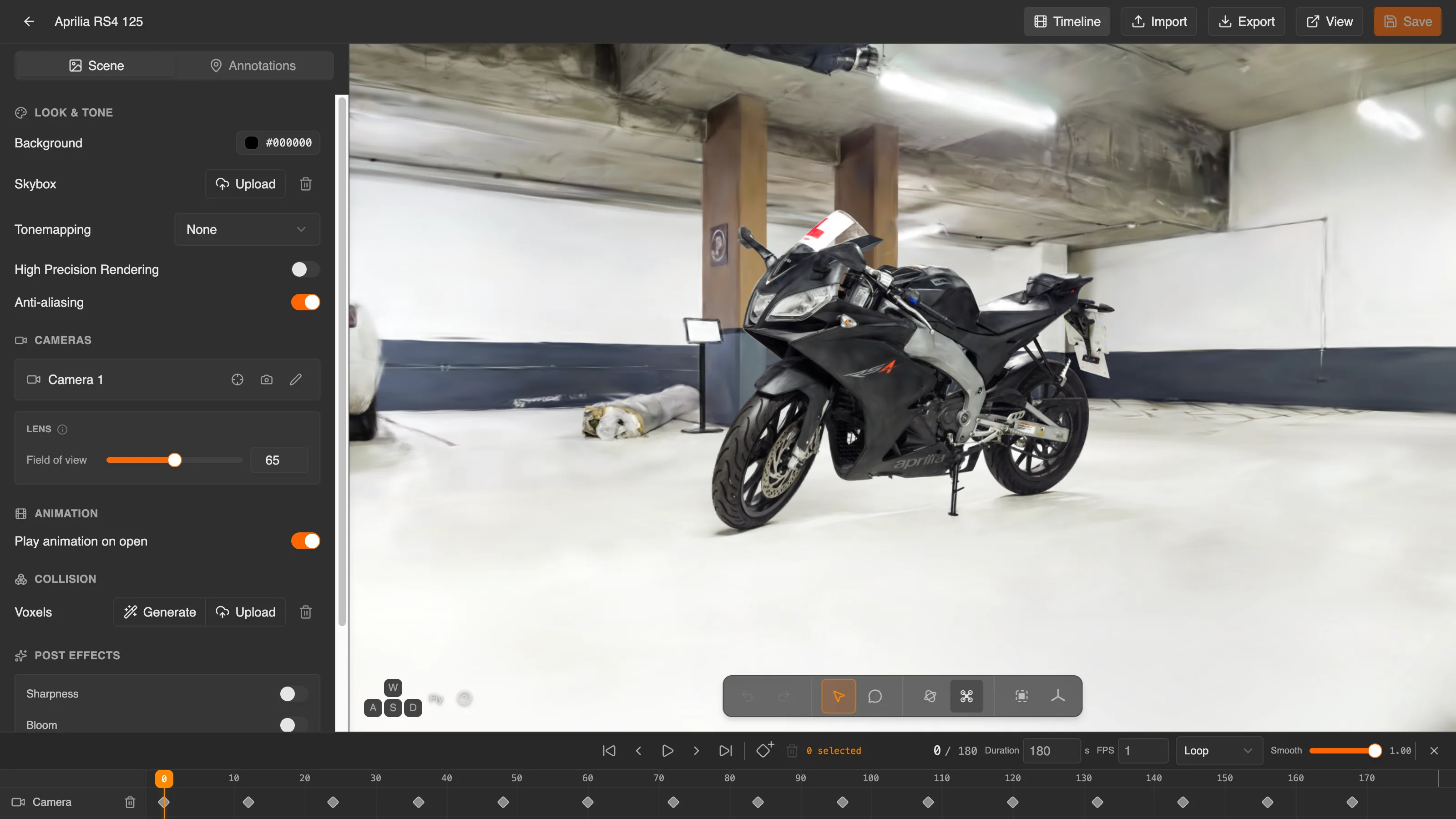
Launching Studio
Studio runs at https://superspl.at/scene/<hash>/studio. Only the splat's owner can open it; for anyone else the URL 404s.
There are three ways to get there:
- On the Manage page, click Open in Studio in the splat's row.
- In a splat's Edit Splat dialog on the Manage page, click Edit in Studio in the preview card.
- On your own splat's scene page, use the Edit in Studio entry point.
Studio is built for a desktop browser with a keyboard and mouse. On a phone or tablet you'll see a "Studio works best on desktop" warning when you open it. You can continue, but expect a constrained UI.
The layout
- Header: Back to manage, the scene name, and on the right Timeline, Import, Export, View and Save. See Saving changes.
- Left panel, with two tabs:
- Scene: the sections that make up the scene's look and behavior, from top to bottom:
- Look & Tone: background color, skybox, tonemapping, High Precision Rendering and anti-aliasing.
- Cameras: the starting camera and the field of view.
- Animation: whether the camera animation plays when the scene opens.
- Collision: voxel geometry that makes a scene walkable.
- Post Effects: sharpness, bloom, color grading, vignette and chromatic fringing.
- Annotations: the list of on-scene annotations.
- Scene: the sections that make up the scene's look and behavior, from top to bottom:
- Viewport: a live preview of how visitors will see the scene, with a toolbar along the bottom.
- Timeline: a panel along the bottom for keyframing the camera animation. It is hidden until you click Timeline or press T.
The viewport toolbar
| Button | What it does |
|---|---|
| Undo / Redo | Step through your edits. |
| Move | The default tool: navigate and select. |
| Add annotation | Place an annotation by clicking the splat (C). |
| Orbit mode / Fly mode | Switch how the viewport camera moves. |
| Frame selection | Frame the selection in the viewport (F). |
| Reset camera | Return the viewport camera to its starting view (Shift+F). |
| Open shortcut guide | List Studio's keyboard shortcuts. |
Keyboard shortcuts
| Shortcut | Action |
|---|---|
| W A S D | Move, in fly mode |
| Q / E | Move down / up, in fly mode |
| Hold Shift / Ctrl | Move faster / slower, in fly mode |
| Double-click | Set the orbit point |
| F | Frame the selection |
| Shift+F | Reset the camera |
| C | Add an annotation |
| T | Show or hide the timeline |
| Space | Play or pause the camera animation |
| Enter | Add a keyframe at the playhead |
| Ctrl+Z / Ctrl+Shift+Z | Undo / redo (Cmd on macOS) |
| Esc | Cancel or deselect |
Saving changes
Edits are not saved automatically. Save is enabled while you have unsaved changes, and it writes your complete Experience Settings to superspl.at. Visitors who open the scene page from then on see the new version. If you try to leave Studio with unsaved changes, it asks you to confirm before they're lost.
Skybox and collision files are the exception: they upload as soon as you add them, without Save.
The other header buttons work with the settings as a file:
- Export downloads the current settings as
settings-<hash>.json, for example to use with a viewer you host yourself. - Import replaces the current settings with a JSON file you choose, after asking for confirmation. Click Save to publish them.
- View opens the scene page.
Studio also reads settings saved in older versions of the format. See Schema versioning.
AI agents
In a browser that supports the experimental WebMCP API, Studio registers tools that let an AI agent work in your open Studio tab, much like the Editor's AI Agents (WebMCP) tools. An agent can read the scene and the live camera, pick points on the splat, capture the viewport as an image, create and update cameras and annotations, edit the camera animation, and play or seek the timeline. Its edits share your undo history.
Agents can't save: you review what an agent did and click Save yourself.
See also
- Experience Settings — the JSON contract Studio writes and the Viewer reads
- Viewer Controls — how visitors navigate the scene you curate
- Scene page — what visitors see after Studio changes are saved