Account Settings
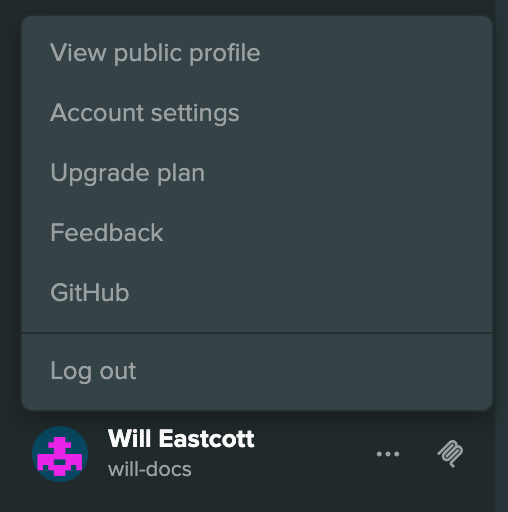
Your account settings are at playcanvas.com/account. To open them from the Project Dashboard, select your name at the bottom of the sidebar and choose Account settings.
The settings are split into three tabs:
- Profile - How you appear on PlayCanvas, the emails you receive, and converting or deleting your account
- Security - Your password and API tokens
- Billing - Your plan, storage, payment details and invoices
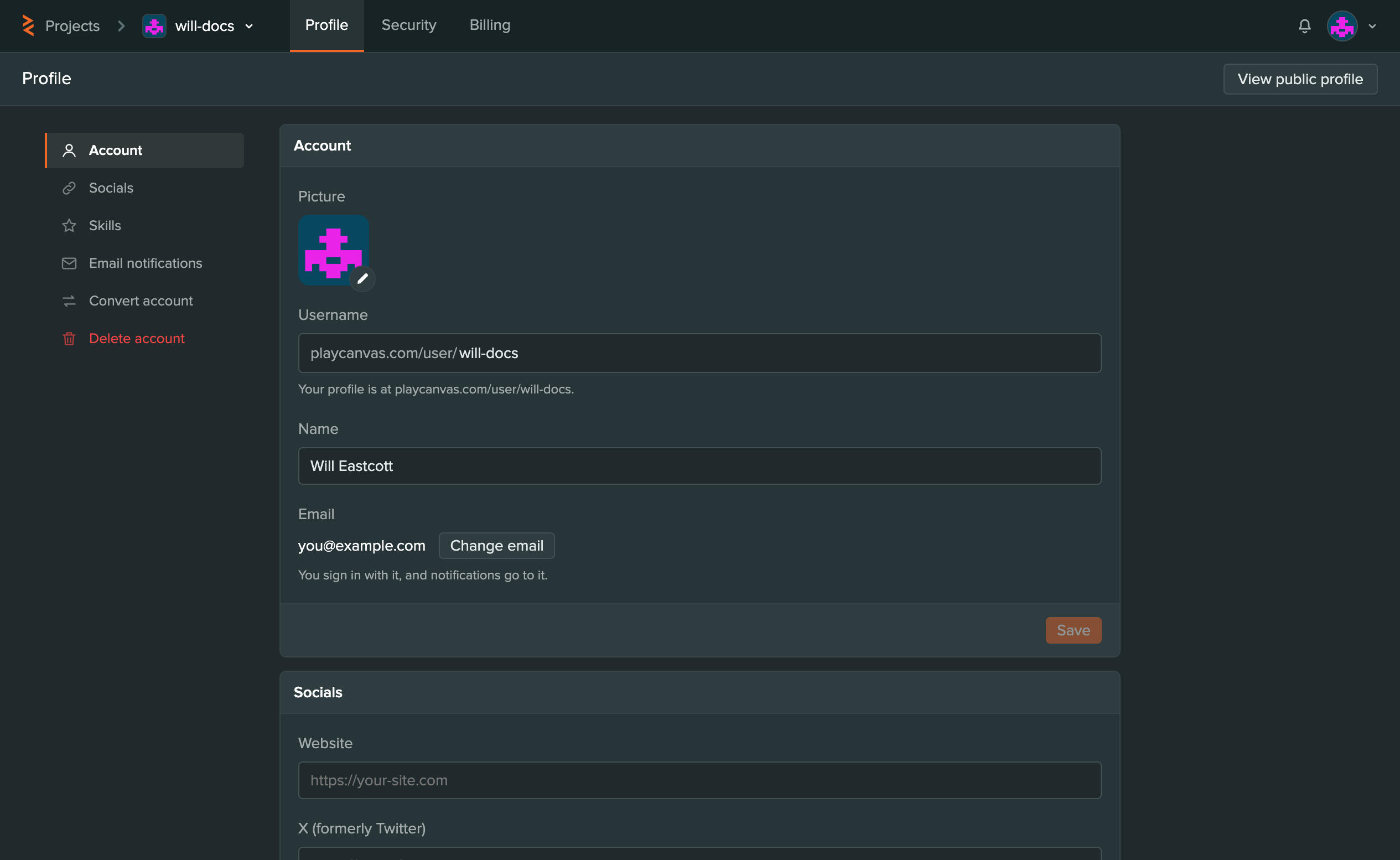
The list on the left of each tab jumps to its sections. Across the top of the page:
- Projects takes you back to the Project Dashboard.
- The account switcher next to it shows the account you're editing. Use it to switch between your personal account and the organizations you own or administer, or to create a new organization. See Managing Organizations.
- The bell shows your notifications, such as when someone stars or forks one of your projects.
- Your picture opens a menu with your public profile, account settings, billing and plans, your organizations, and Log out.
Profile Tab
View public profile at the top right opens your profile as others see it.
Account
- Picture - Select the pencil to upload a PNG or JPEG image.
- Username - Your unique handle, which sets the address of your profile,
playcanvas.com/user/<username>. You can change it to any username that isn't already taken. - Name - Your full name, shown on your profile and to your collaborators.
- Email - The address you log in with, and where your notifications go. To change it, select Change email and enter the new address. PlayCanvas sends a confirmation link to the new address and another to your current one.
Select Save to keep your changes.
Socials
Add links to your Website, X (formerly Twitter), LinkedIn and YouTube, then select Save. These links are public on your profile.
Skills
Select the skills that describe you: Coder, Artist, Designer and Musician. They're shown on your public profile. Select Save to keep your changes.
Email Notifications
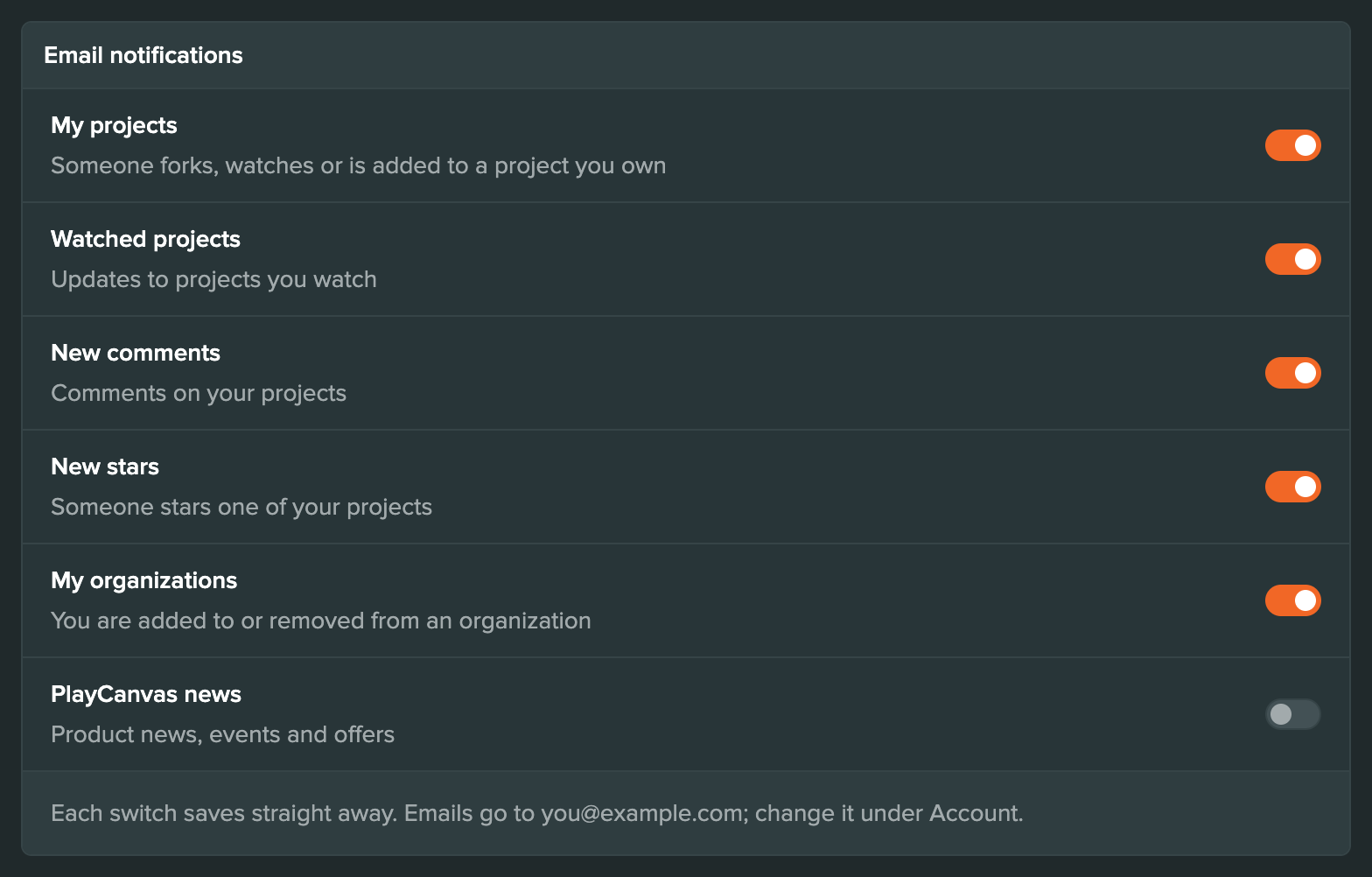
Choose which emails PlayCanvas sends you. Each switch saves as soon as you change it.
| Switch | Emails you when |
|---|---|
| My projects | Someone forks, watches or is added to a project you own |
| Watched projects | A project you watch is updated |
| New comments | Someone comments on your projects |
| New stars | Someone stars one of your projects |
| My organizations | You're added to or removed from an organization |
| PlayCanvas news | There's PlayCanvas product news, an event or an offer |
Convert Account
Convert to organization turns your account into an organization owned by another user. Its projects move with it, and you can no longer log in to it. See Convert a User Account into an Organization.
You can't convert an account that owns organizations. Delete those organizations or transfer their ownership to another user first.
Delete Account
Delete account deletes your account and every project you own. To confirm, type delete this account and select Delete.
Deleting your account is permanent and can't be undone. Export any projects you want to keep first.
If you own any organizations, Delete account is turned off. Delete those organizations or transfer their ownership first.
Security Tab
Password
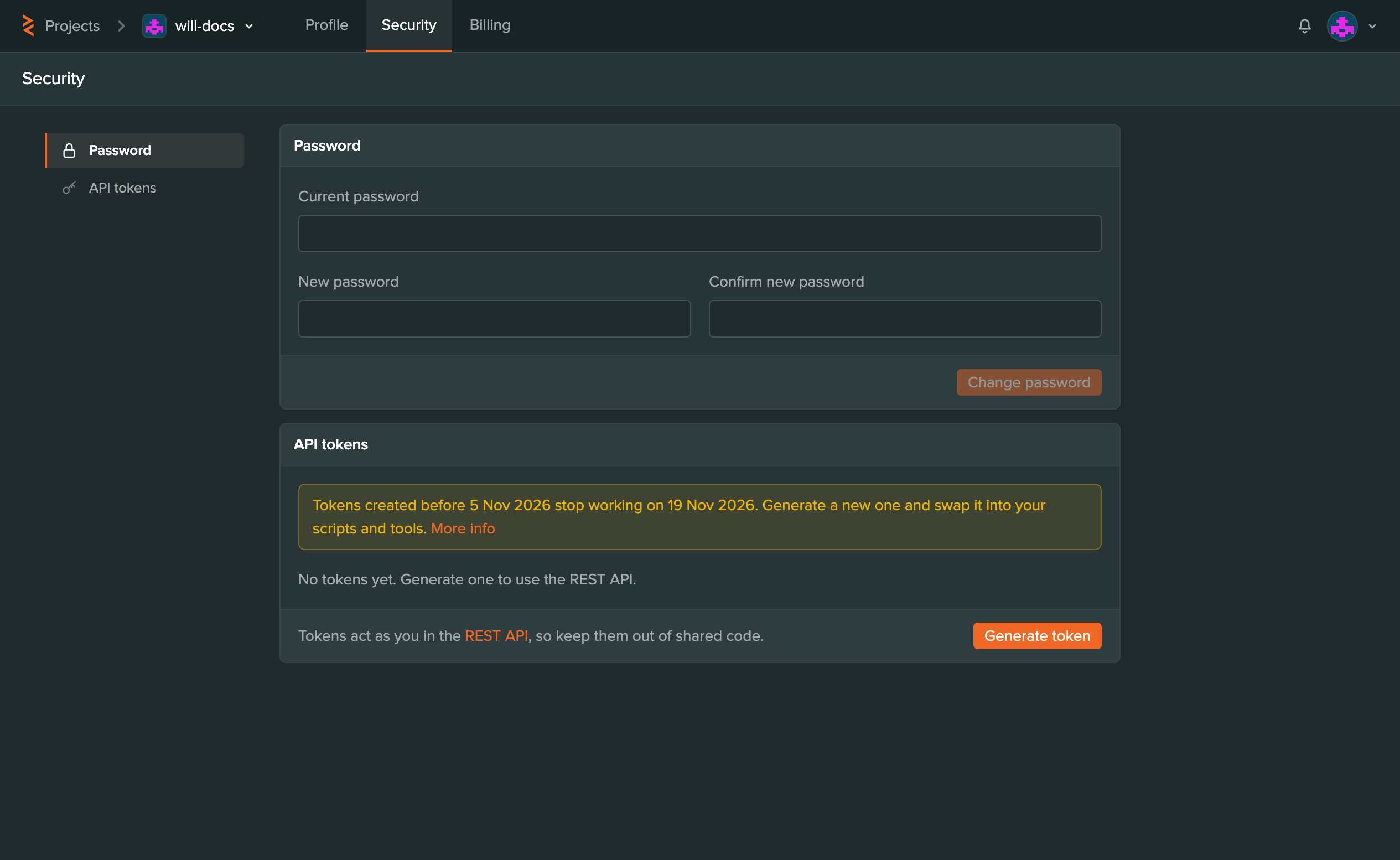
To change your password, enter your Current password, then your New password and Confirm new password, and select Change password. If you signed up with Google or GitHub, your account has no password yet. Enter a new one and select Set password to log in with your email address or username as well.
Use a strong password, and consider a password manager to keep track of it.
API Tokens
API tokens let your scripts and tools use the REST API. A token acts as you, so keep it out of shared code.
To create one, select Generate token, enter a Name such as CI publish, and select Generate. Copy the new token straight away, because you won't be able to see it again.
Your tokens are listed in this section, where you can Rename or Revoke each one, or select Revoke all. A revoked token stops working straight away.
API tokens created before 5 November 2026 don't work from 19 November 2026. If a script or tool still uses one, generate a new token and use that instead.
Billing Tab
The Billing tab shows your Plan, what's using your Storage, your payment details and your Invoices. Compare plans opens the Plans page, where you can upgrade. See Plans and Billing.